


Google Merchant Center and Shopping Ads: How to Run Them in Türkiye
Google Merchant Center is the free panel where you hand Google your product list, with prices, images and stock levels. A Shopping ad is the product card built from that list: the one that shows up in search results with a price and a store name. Opening the account and uploading products costs nothing; money leaves through Google Ads when someone clicks a card. If you run an online store, our first campaign is not Search but Shopping: the shopper sees the product and the price before clicking, so the click is far more decided than one on a text ad.
This article covers the order of setup, how to write the product list, and which campaigns an e-commerce site should open, in which order. The two topics we spend the most time on are the two complaints we hear most: products being disapproved, and accounts being suspended for "misrepresentation". In most cases the cause is not the feed but the website itself.
What Google Merchant Center is, and where Shopping ads appear
The division of labour is simple: product information lives in Merchant Center, budget and campaigns live in Google Ads. The same product list shows up in two places. In free listings (the Shopping tab, Google Images) without paying for ads, and in Shopping ads, the "Sponsored" product strip at the top of search results, where you pay per click.
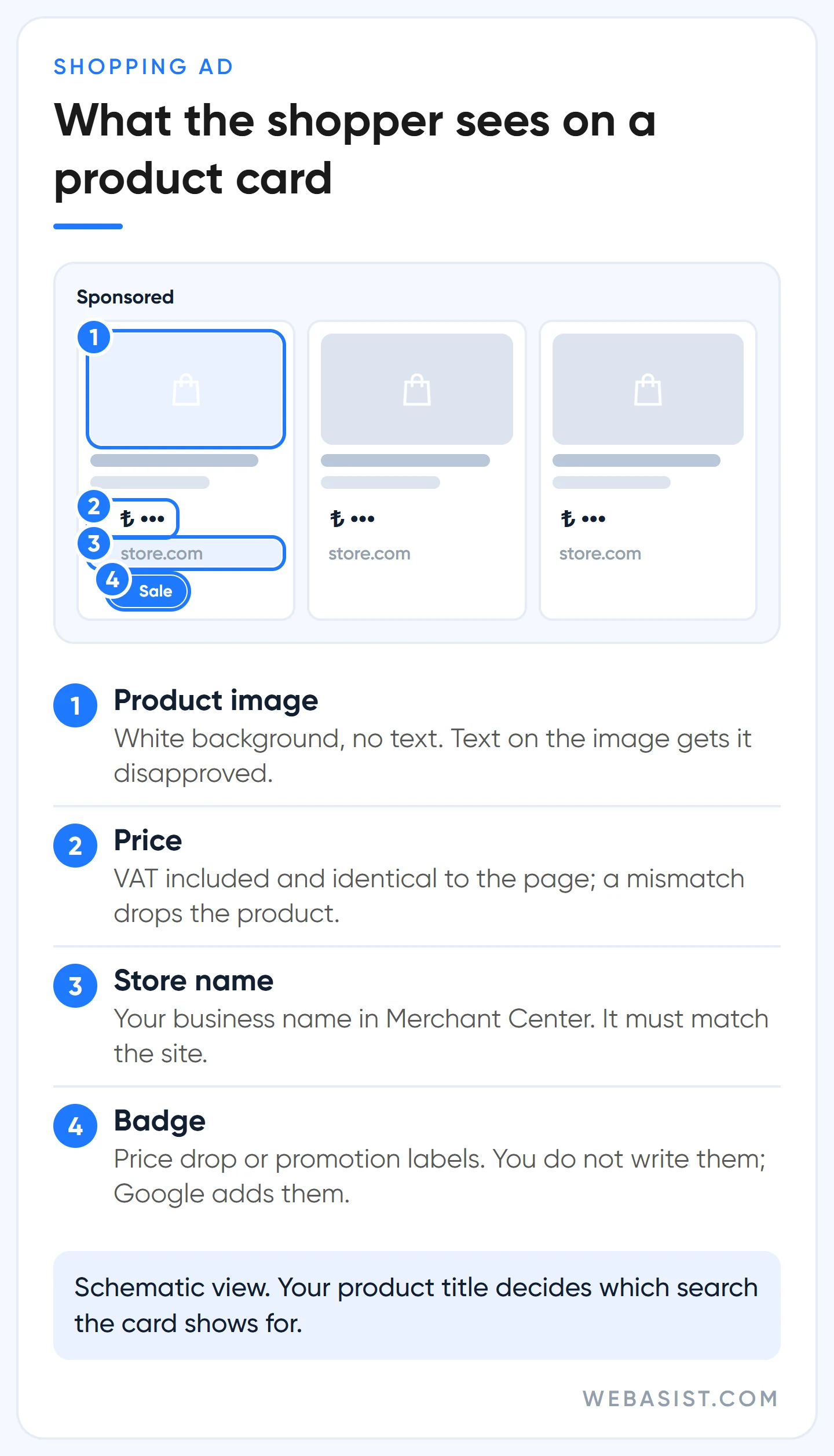
There are no keywords to choose in a Shopping ad. Google matches the search against your product title, description and category. A product you submit as "sports shoes" will not show for "nike air max size 42". Your product list is your keyword list; that is the single most important sentence in this article.
The Türkiye side is clear. Shopping ads and free listings are available in Türkiye, the currency is the lira and the language is Turkish. Prices are submitted including VAT; Türkiye is on Google's list of countries where the price must include tax. The price on the page, in the cart and in the list must match to the kuruş.
How to run Google Shopping ads: the order in five steps
Setup takes an afternoon; product review takes days. Keep the order, because most warnings that appear later come from a skipped step.
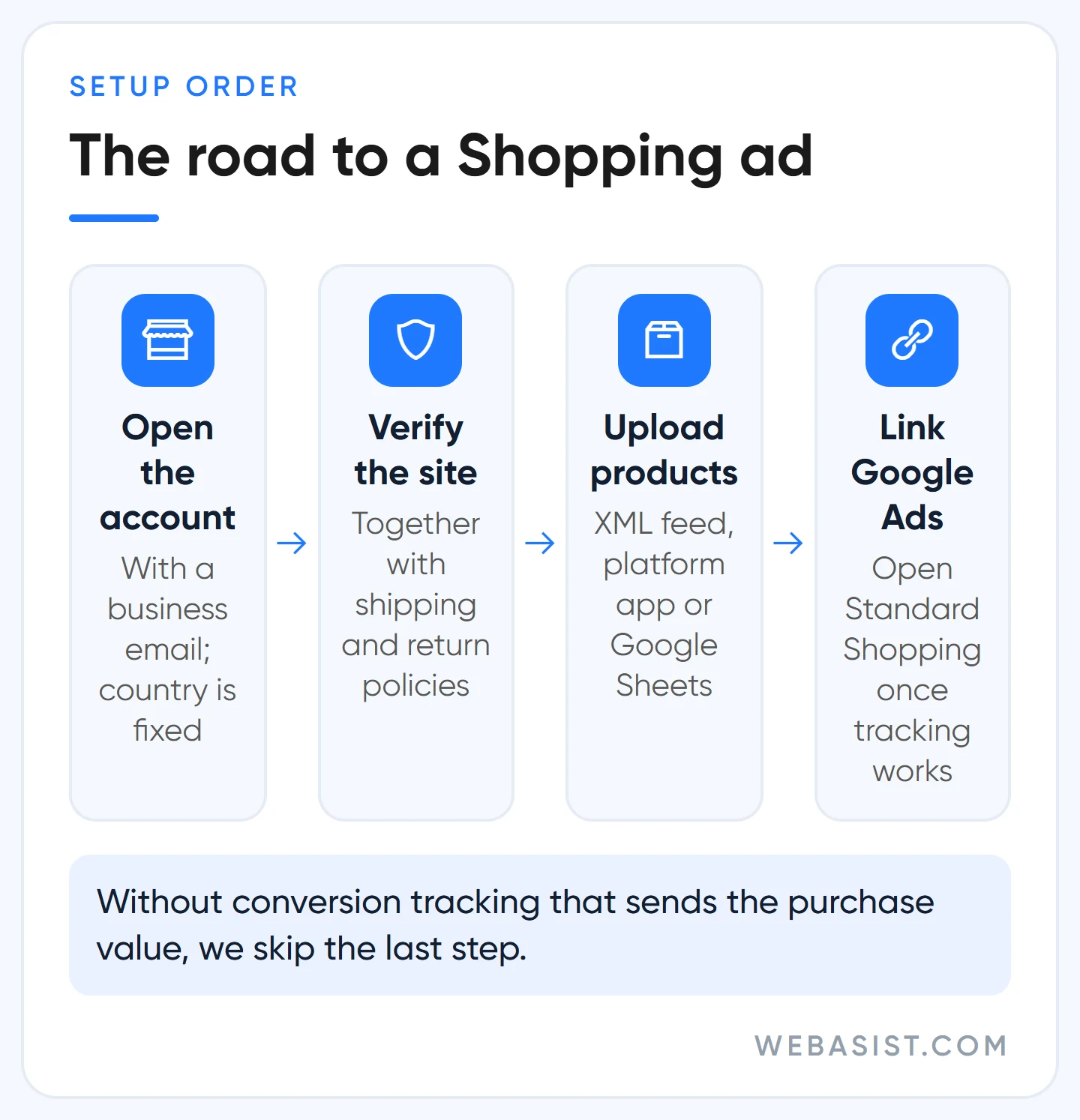
- Open the Merchant Center account with a business email. One Google account can open one Merchant Center account, and the country you pick during setup cannot be changed later. Taking over an account opened with an employee's personal Gmail is a headache of its own.
- Verify and claim the website. If Google Analytics or Tag Manager already runs on the site, verification usually completes on its own. One domain can be claimed by one account only.
- Enter shipping and return policies. Shipping cost is not technically mandatory for Türkiye; we enter it anyway. If the shipping fee is missing from the card, the shopper discovers the total in the cart, and Google can treat that as a hidden cost.
- Upload the products. Which method suits whom is in the next section.
- Link Google Ads and open the campaign. You start the link from Merchant Center (Settings > Access and services > Apps and services) and approve it on the Google Ads side. Do not open a campaign until your tracking sends the real purchase value; set up conversion tracking first.
On the campaign screen Google steers you toward Performance Max; even after you pick Shopping, it offers the switch. Google recommends it because PMax also spreads the budget across YouTube, Gmail and the Display Network, and spends more. In a new store with no sales data we open with Standard Shopping; it is the only place you can see which product showed for which search. The reasoning is in the "which campaign, in which order" section below.
The product list (feed): your product title is the keyword
The feed is the product list Google now calls a "data source". The fields you must get right for every product are few: ID, title, description, link, image, price, availability, brand and GTIN where one exists. If you sell clothing you also need colour, size, gender and age group, and you connect variants with item_group_id. The full list is on Google's product data specification page; we focus on the four fields that affect your money.
- Title (150 characters): Write it in the order a shopper searches: brand, product type, model, colour, size, material. "Product 1453" or "Great Price!!!" matches nothing. A title that drifts from the product name on the page is also a disapproval reason.
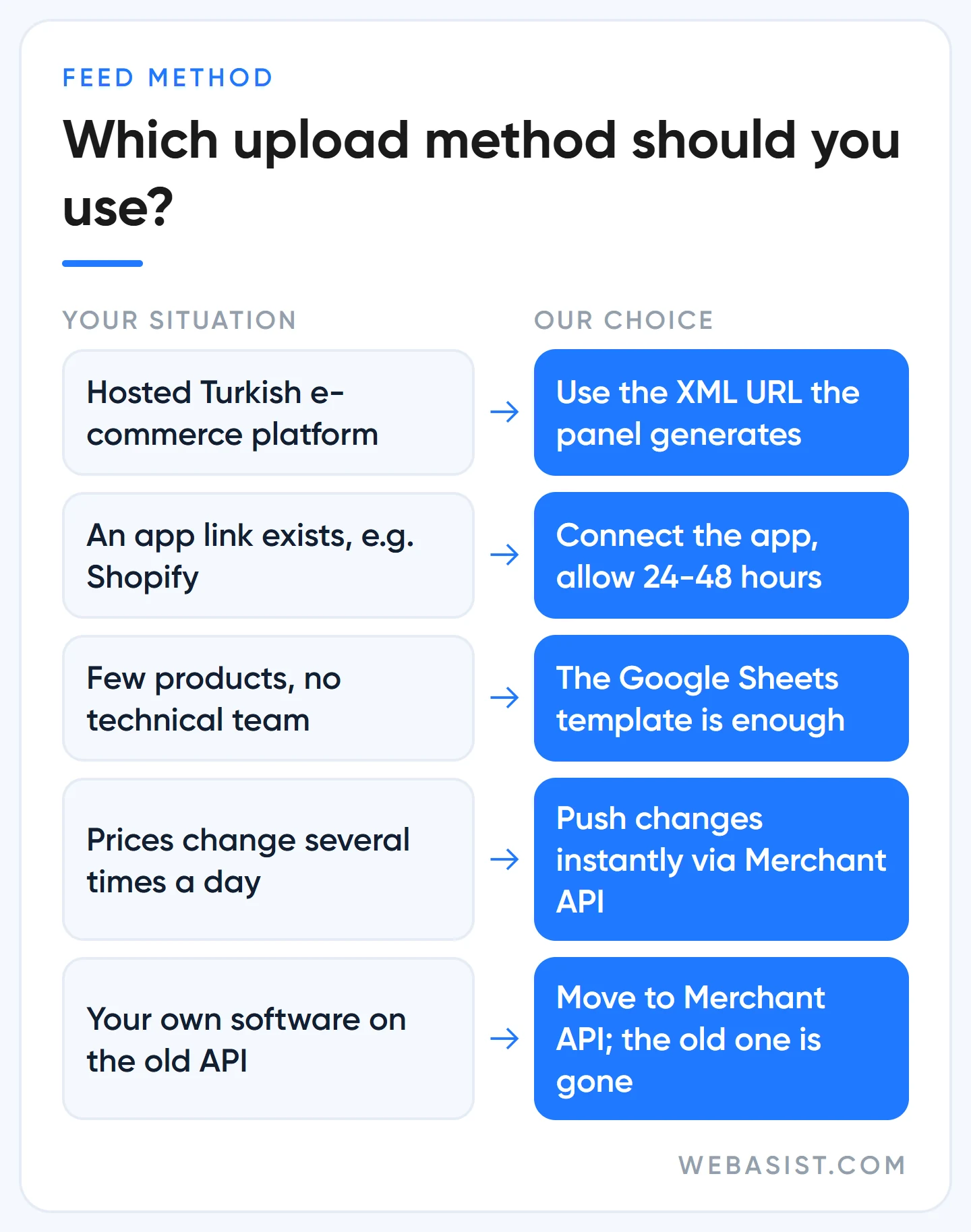
- Price and stock: Page, cart and feed must agree. In a store that changes prices three times a day, an XML file fetched once a day produces mismatches. We schedule the feed right after the price update and keep Merchant Center's automatic price and availability updates switched on.
- Image: A product photo on a white background, no text, no watermark. From 31 January 2027 a minimum of 500×500 pixels is required; we already work at 1000×1000 and above. An image with "50% off" written on it gets disapproved.
- Brand and GTIN: If the manufacturer's barcode exists (in Türkiye usually a 13-digit EAN), send it. If it does not, do not invent one; send brand and manufacturer part number, and for products you make yourself put your store name in the brand field. A made-up GTIN does not just burn the product, it burns the account's trust.
Which upload method should you use?
Most e-commerce platforms used in Türkiye generate a ready-made XML feed URL for Merchant Center, usually under a "Google Shopping" or similar heading in the admin panel. You give Merchant Center the URL and Google fetches it once a day. If your product pages carry structured data, Google's automatic website crawl also works, but it is not compatible with listing physical-store inventory. Platforms such as Shopify have an app link; changes can take 24-48 hours to show. With a small catalogue and no technical team, the Google Sheets template is enough.
One warning if your own software talks to Google directly: the old Content API for Shopping was sunset on 18 August 2026 and requests have been failing intermittently since September. If your integration has not moved to the Merchant API, ask your developer today; if you use a hosted platform, your provider should have done the migration.
Merchant Center products disapproved: the five usual reasons and what we do
Every product goes through Google's review; for Shopping ads it takes 3-5 business days, for free listings it can take a few weeks. Disapproved products appear in the "Needs attention" tab. In the accounts that come to us, the disapproval list almost always comes down to these five:
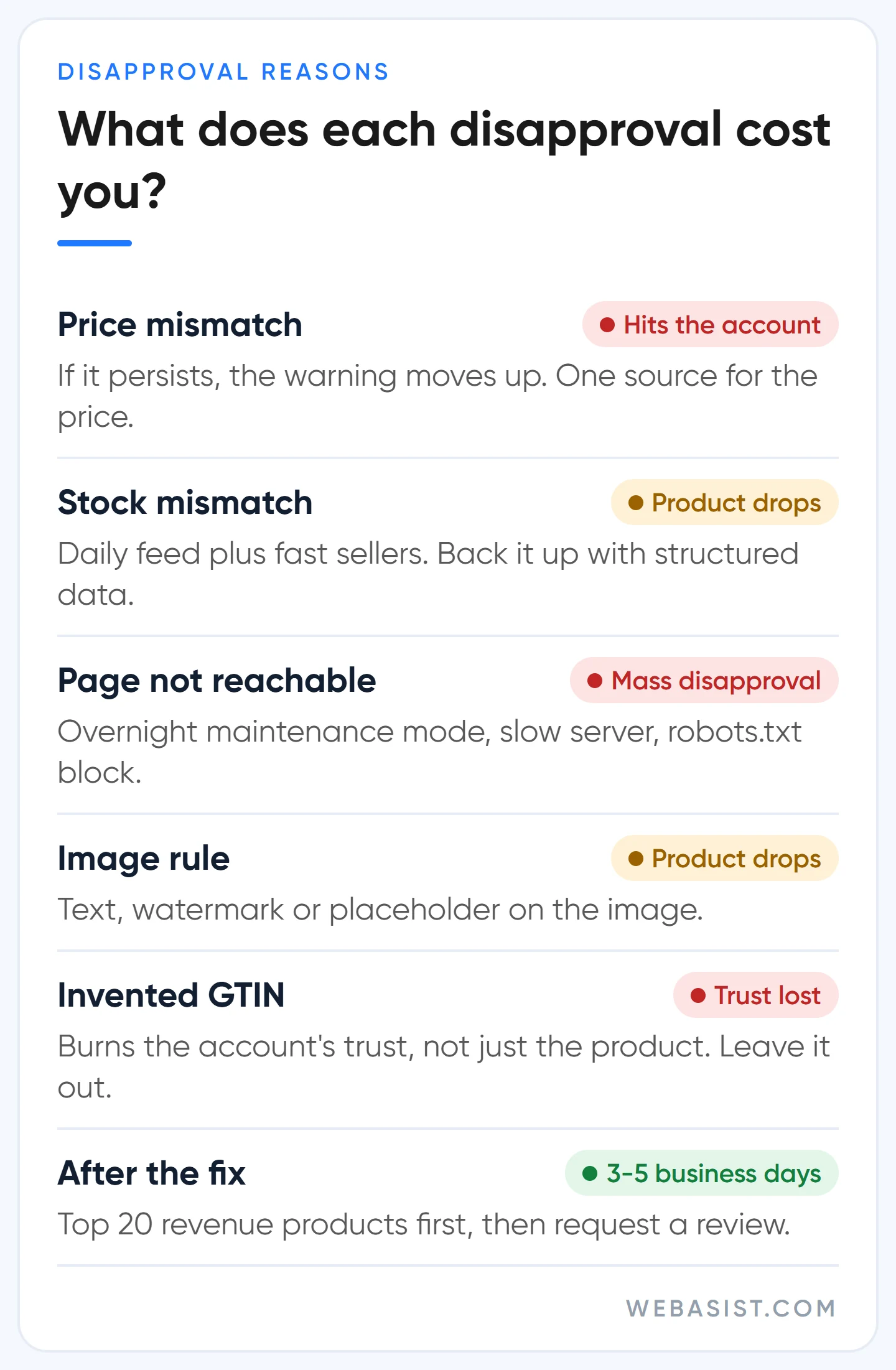
- Price mismatch. The feed says 1,299 TL, the page shows 1,199 TL. Google crawls the page, and if the two figures disagree it drops the product; if the mismatch persists, the warning moves up to the account. The fix is to generate the price from one source. Themes that load the discounted price with JavaScript after the page renders fall into this trap too, because the crawler reads the first price it sees.
- Stock mismatch. "Sold out" on the page, "in stock" in the feed. We see it often in stores with a daily feed and fast-selling items; send availability through the page's structured data as well.
- Landing page not reachable. The site was slow or down when Google checked, or robots.txt blocks Googlebot. Stores that switch on maintenance mode overnight see mass disapprovals the next morning.
- Image. Too small, text on it, watermarked, a logo, or an "image coming soon" placeholder.
- Invalid identifier. An invented GTIN, or your own SKU in the MPN field.
Our order: we look at account-level warnings first, because fixing products one by one is wasted while one of those is open. Then we fix the 20 products that bring the most revenue and request a review; we do not try to fix the whole catalogue in one day. We never change a product ID; a product with a new ID is reviewed from scratch and loses its performance history.
Account suspended: why misrepresentation happens and how to resolve it
The heaviest penalty in Merchant Center hits the account, not the products, and most of it comes from the "misrepresentation" policy. The name sounds alarming, but in the large majority of cases we see there is no fraud; there is an incomplete website. Google looks at your site the way a customer would: who is selling, how do I reach them, can I return this, is my card safe, how much is shipping? If the site does not answer one of those questions, the account can be suspended.
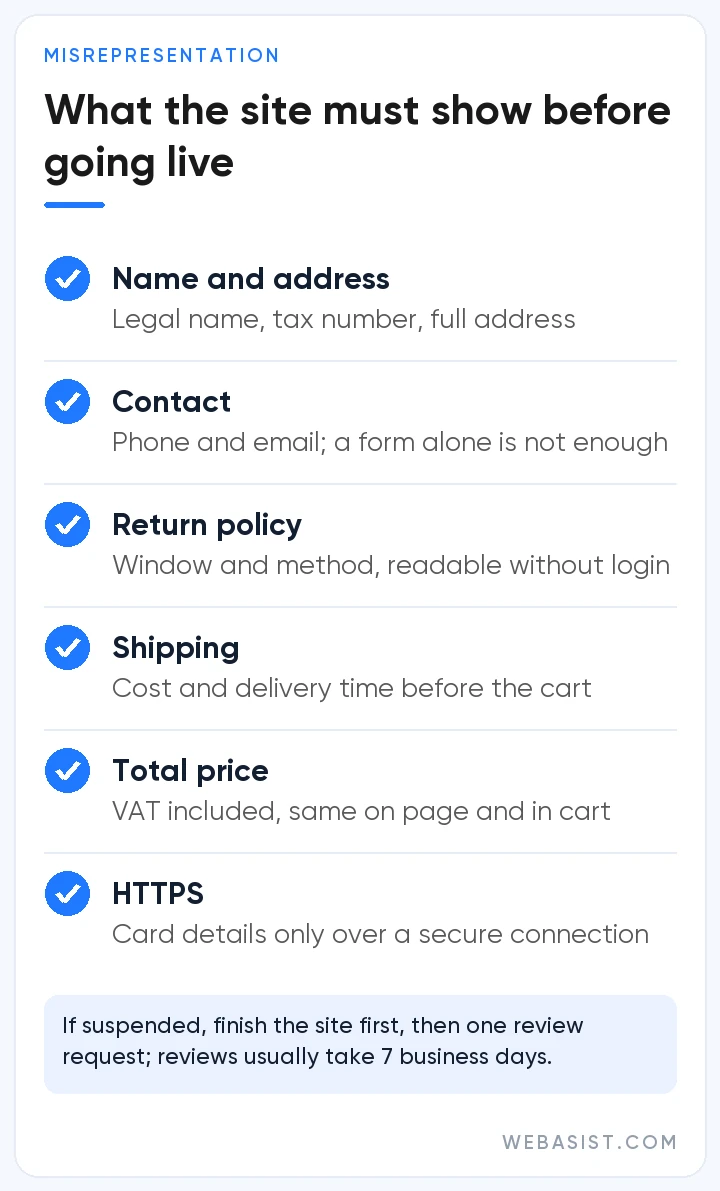
Before going live, we want these visible on the site without logging in: legal business name, tax number and full address; phone and email; return window and method; shipping cost and delivery time; total price including VAT; HTTPS. And no products that cannot be paid for or that stay listed while out of stock. On a site with an empty About page and a contact page that is only a form, we treat a suspension as almost a given.
If you have been suspended: for some violations Google sends a warning at least 7 days before suspending; for what it calls "unacceptable business practices" it suspends without warning. Fix the site completely first, then send a single review request. Account reviews typically take 7 business days; sending a second and third request with the same text speeds up nothing in our experience. Opening a second account is not a solution either, as linked accounts get suspended too. Suspensions on the Google Ads side follow a different path; we wrote about those for advertisers whose account was suspended.
Which campaign for an e-commerce site, and in which order?
A Shopping ad on its own is not a strategy. In an e-commerce account every campaign should have one job, and campaigns should not eat each other's traffic. The picture we see most often in store accounts we take over: every product in a single Performance Max campaign, brand searches inside it, a shiny ROAS, no new customers. Our opening order:
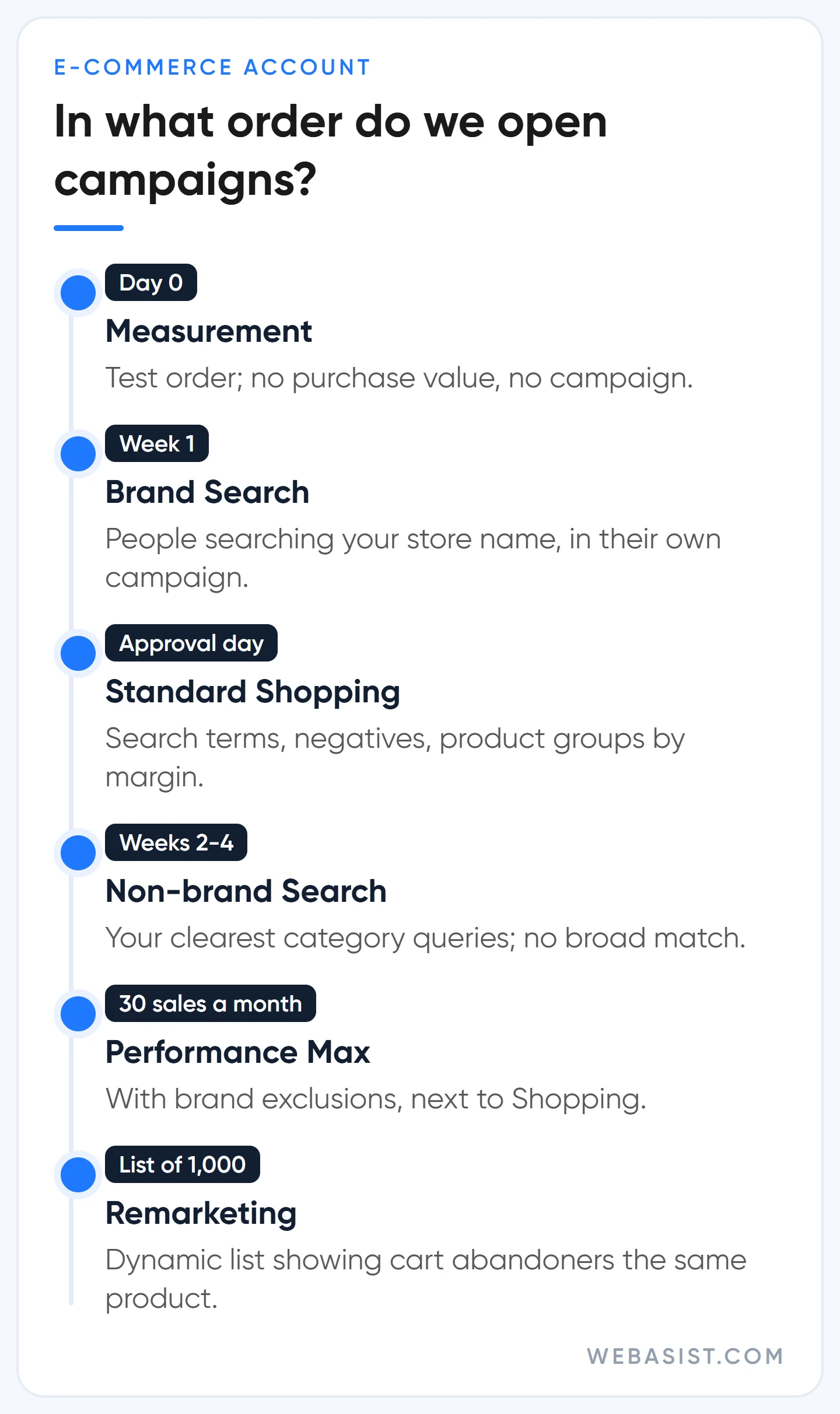
- Measurement. Place a test order; does the purchase conversion send the real basket value? If not, we open no campaign at all.
- Brand Search campaign. A small Search campaign for people searching your store name. Cheap and high-converting; if it is not kept separate, it looks like the success of other campaigns. It also matters if competitors bid on your name; we covered that in competitor brand bidding.
- Standard Shopping. The day the product list is approved. We read the search terms report, add negatives, and split product groups by margin and performance.
- Non-brand Search. For your clearest category queries ("men's leather boots", "wireless headphones"), using the structure in our search campaign setup article.
- Performance Max. Once the account sees around 30 purchases a month, with brand exclusions, and next to Standard Shopping rather than instead of it. When we open it and when we do not is in our Performance Max article.
- Remarketing. Dynamic remarketing that shows cart abandoners the same product, once the list reaches 1,000 people. Details in our remarketing article.
A short setup for three store types (example scenarios). A single-category boutique: brand Search plus one Standard Shopping campaign, no PMax. A multi-category store with hundreds of products: brand Search kept separate; products split by margin label into Shopping or PMax campaigns with different ROAS targets; non-brand Search for high-volume categories. A seller of its own brand: a strong brand Search campaign, PMax with brand exclusions, a separate setup for existing customers. The rule is the same in all three: no product sits in two product campaigns at once. When Standard Shopping and PMax target the same product, Ad Rank has decided which one serves since October 2024, not an automatic PMax priority.
What should your target ROAS be? A break-even sum from your margin
In a Shopping campaign you have to teach the bidding system profit, not revenue, and the starting point is break-even ROAS. Example scenario: on a product you sell for 1,000 TL, 400 TL of gross profit is left after product cost and shipping, a 40% margin. Break-even ROAS = 1 / 0.40 = 2.5. Unless every 1 TL you spend on ads brings back at least 2.5 TL of revenue, you are losing money.
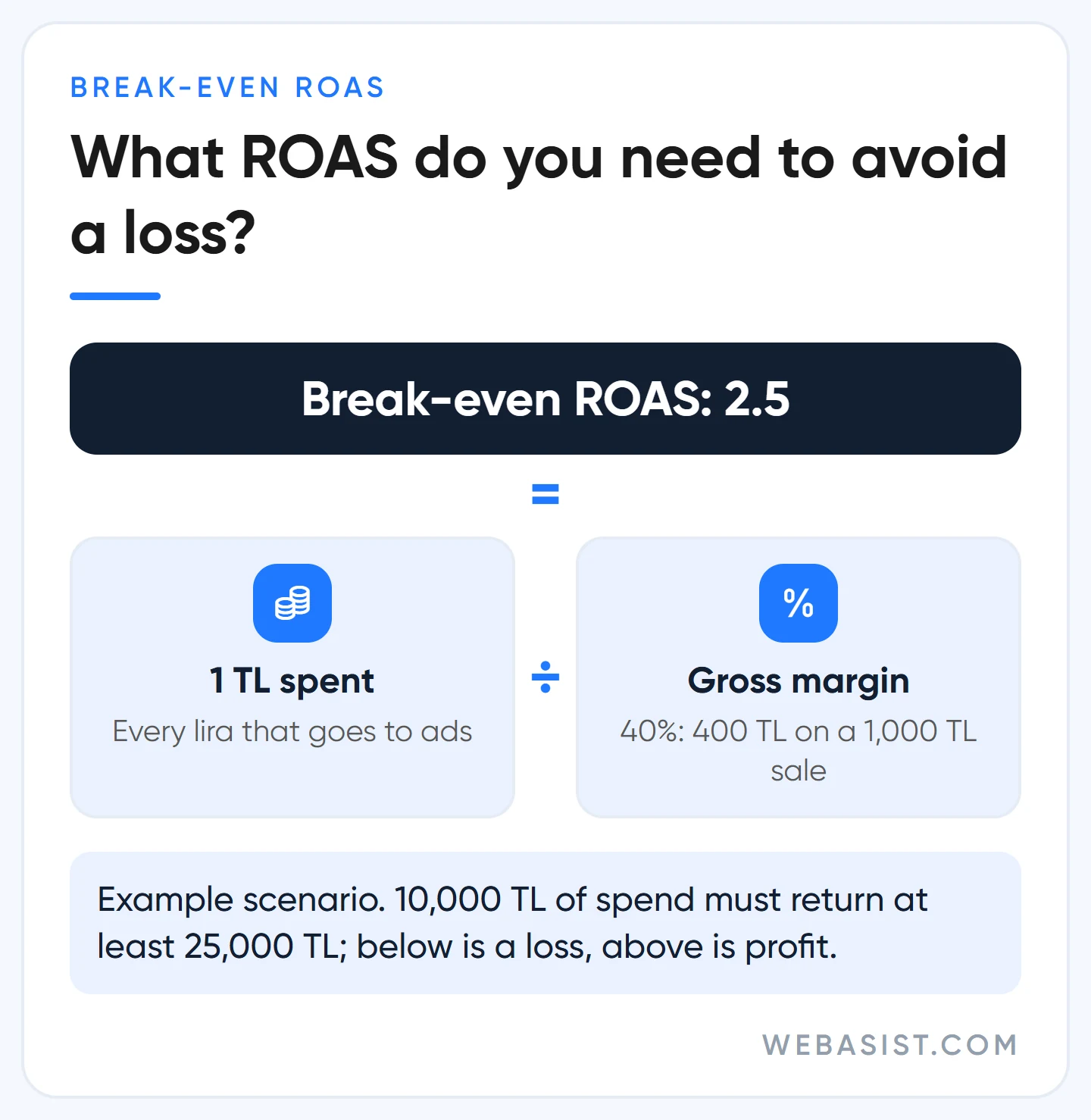
A campaign that spends 10,000 TL and makes 25,000 TL of revenue has zero profit; at 40,000 TL it makes 6,000 TL of profit (40,000 × 0.40 - 10,000). We set the target ROAS above break-even and below past performance. Google's suggestion to "lower your target ROAS for more sales" knows nothing about your margin; lower it and revenue rises while profit falls. If you send per-product cost in the feed with the cost_of_goods_sold field, Google Ads reports gross profit by product. The budget side is in our budget planning article and the bidding side in bidding strategies.
Who should not use it?
- You have no website of your own and sell only on marketplaces. Merchant Center is tied to your domain; a marketplace store has the marketplace's own ad system.
- Gross profit per product is under 100 TL and baskets hold a single item. With an 8 TL click and a 2% conversion rate, one sale costs 400 TL; the margin cannot carry the click.
- The site is live without contact, return and shipping information. Complete the site first; we will not open the account in that state, because it gets suspended.
- Prices and stock change often but nobody updates the feed. Every mismatch means a disapproval and a warning.
- You sell services. Shopping ads are for physical products; for services, search ads are the right tool.
Frequently Asked Questions
Is Google Merchant Center free?
Yes. Opening the account and showing products in free listings costs nothing. Money is only spent when you open a Shopping or Performance Max campaign in Google Ads, per click. If we manage it for you, the management fee is a separate item; current prices are on our Google Ads packages page.
How long does product approval take in Merchant Center?
3-5 business days for Shopping ads; a few weeks for other features such as free listings. A price or stock update on an approved product is usually processed within 15 minutes.
What if my product has no barcode (GTIN)?
Do not invent one. For products the manufacturer never assigned a GTIN, send brand and manufacturer part number (MPN); for products you make yourself, use your store name as the brand. For products with no brand, GTIN or MPN, you can submit identifier_exists as "no".
Can I show products on Google without paying for ads?
Yes. Approved products in Merchant Center can appear in free listings on surfaces such as the Shopping tab and Google Images. New accounts are usually included by default; there is no guaranteed position, and visibility depends on the quality of your product data.
Are Merchant Center Next and Google Merchant Center the same thing?
Yes. The "Next" name was dropped in July 2026; the interface you use is now simply Google Merchant Center. Accounts, products and campaigns were not affected by the change.
Conclusion
The store that wins in Shopping ads is not the one with the biggest budget but the one with the cleanest site and product list. Site first: contact, returns, shipping, VAT-inclusive prices. Then the list: titles in search language, prices that match the page, real barcodes. The campaign comes last, and on a small budget it starts with Standard Shopping.
If the "Needs attention" tab in your Merchant Center is full, send us a screenshot and your site address; we will rank the disapproval reasons by importance and tell you which ones carry a suspension risk. If there is no account yet, let us check the site together first; getting a suspended account reinstated takes far longer than starting clean.