


How to Create a Google Ads Campaign: Search Setup and Location Settings

Creating a Google Ads campaign means clicking Create, choosing Campaign and filling in eight screens: goal and campaign type, conversion goals, bidding, campaign settings, AI Max, ad groups and ads, budget, and review. Someone who has prepared can build a Search campaign in half an hour. Google saves your changes as a draft, so you do not have to finish in one sitting.
The real work is not filling in the screens; it is knowing the defaults on them. A new Search campaign comes with search partners on, AI Max selected, the location option set to "Presence or interest", and every keyword you type without symbols added as broad match. A boiler repair firm that leaves all of this alone ends up paying for people in Ankara searching "istanbul boiler repair". Below we explain what we do on each screen, with a separate section on location settings, the part people search for most.
Before you start: do not open a campaign without these three
- Conversion tracking: Forms, calls or WhatsApp clicks must be defined as conversions and tested. Google asks for at least one conversion goal when you create a Search campaign; a campaign without tracking does not know what to look for. Setup is in our conversion tracking guide.
- A themed keyword list and starter negatives: Each ad group built around one service. How we build the list is in our keyword research article.
- A landing page for each theme: Someone searching "boiler service" should land on the boiler service page, not the home page.
If these three are not ready, do not open the campaign. Launching a campaign that is not ready "because we can fix it later" means spending the first two weeks' budget without collecting usable data. If you do not have an account yet, follow the steps in our Google Ads account setup article and switch to Expert Mode during sign-up; Search campaigns cannot be built in Smart Mode.
Creating a Google Ads campaign step by step: 8 screens
Start the flow with the plus icon on the Campaigns page or with Create > Campaign. Screen names can shift slightly with interface updates; the order and the decisions stay the same:
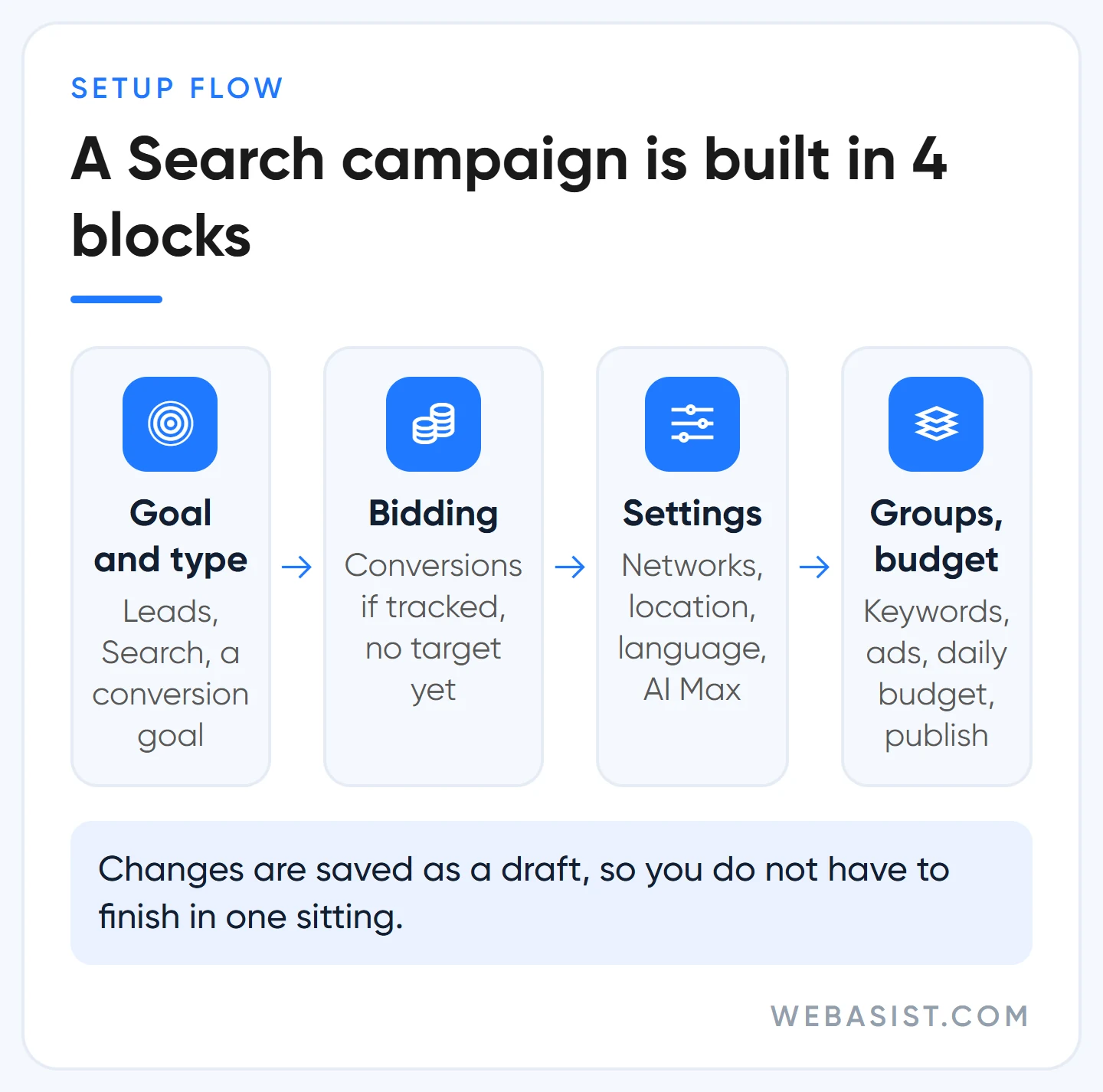
- Goal and type: Choose Leads or Sales and pick Search as the campaign type.
- Conversion goals and name: If low-value actions such as newsletter sign-ups or page views are listed as primary goals, remove them; the bidding system will treat them as real customers. Give the campaign a readable name such as "Search | Kadıköy | Boiler service".
- Bidding: If tracking works, we start with a Conversions focus and no target CPA. We set the target after a few weeks of real data. The differences between strategies are in our bidding strategies article.
- Campaign settings: Networks, locations, language, audiences, assets, start and end dates. Most of the decisions sit on this screen; we cover them separately below.
- AI Max: Switched on by default for new Search campaigns. Our call is in the next section.
- Keywords and ads: Ad groups, keywords and responsive search ads.
- Budget: An average daily budget, or a total budget for campaigns with set dates.
- Review: Fix the warnings and press Publish.
The defaults on the setup screen and what we change
Google fills in the setup screen to grow reach. Each of these settings can be defended; but together, in a new account without data, they move a large share of the money to traffic that is not customers. In a new campaign we change the following:
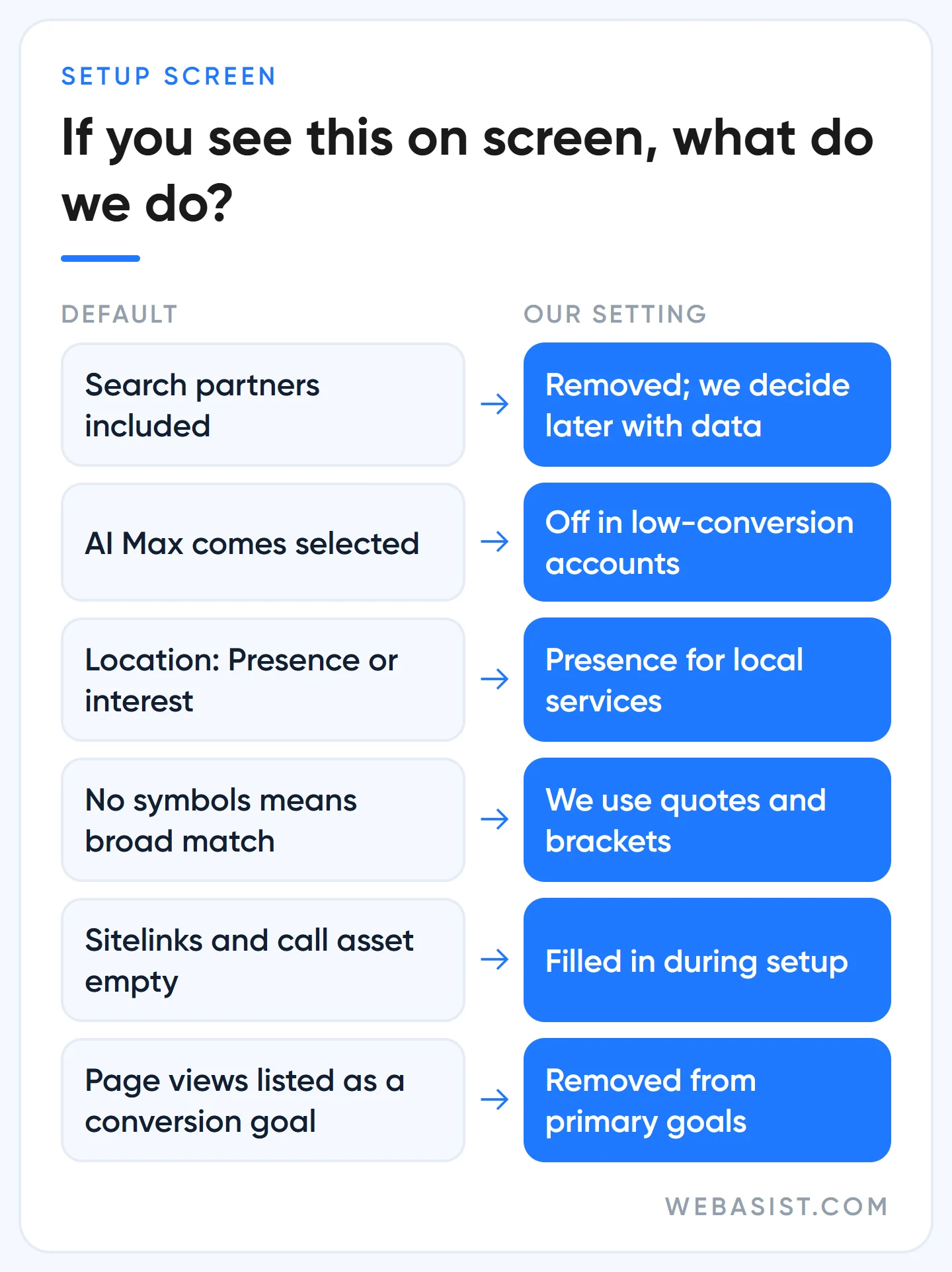
- Search partners: Included by default. We remove them; after a few weeks, if there is data, we measure them separately and turn them on if they work.
- The Display Network box: If it is ticked, unspent search budget goes to image ads on websites. We untick it in Search campaigns.
- AI Max: Google selects it by default in new Search campaigns and suggests reaching beyond your keyword list. In an account with solid conversion data, conversion-based bidding and an unconstrained budget, we leave it on and add URL and brand controls. In a small account with a handful of conversions a month we switch it off; there, going beyond the keyword list means spending the budget on trial and error. Details are in our AI ad optimization article.
- Location option: The default is "Presence or interest". For local service businesses we switch it to "Presence"; the next section explains why.
- Keywords without symbols: A keyword typed without quotes or brackets is added as broad match. With little data we start with phrase ("boiler service") and exact [boiler service] match.
- Empty assets: Sitelinks, callouts and the call asset are waiting to be filled in on the setup screen. We do not leave them empty; they make the ad bigger and help Ad Rank.
Read this not as a criticism of Google but as a seller's natural preference: a company that sells ad space sets its defaults for more impressions. Our job is to set your budget up for your customers.
Google Ads location settings: Presence, or Presence or interest?
In the Locations section of campaign settings you make two decisions: which area, and which people. You choose the area as a country, province, district, or a radius drawn around an address. The real trap is in the second decision, hidden under "Location options". There are two choices; older Turkish translations and many guides call them "Varlık" and "Varlık veya ilgi":
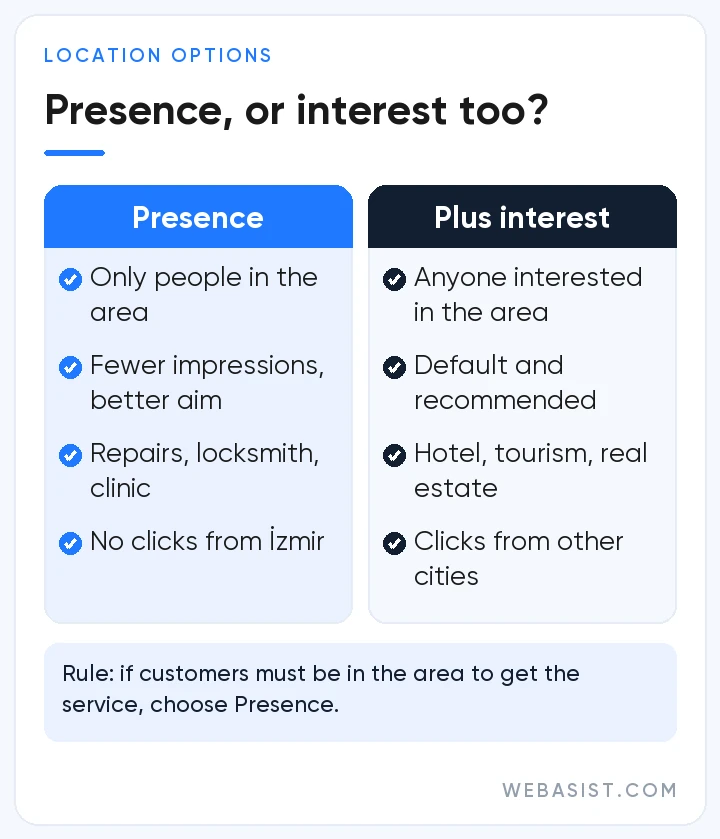
- Presence or interest (default): Reaches people in the area or regularly there, plus people who show interest in that area through their searches or the content they view. Those people can be in another city, even another country.
- Presence: Only reaches people in the area or regularly there.
Google presents the default as the recommended setting and notes that switching to "Presence" lowers impressions in most campaigns. Impressions do go down; a large share of the lost impressions are people you could never serve. A locksmith offering emergency service in Kadıköy cannot sell anything to someone in İzmir searching "kadıköy locksmith". That is why we choose "Presence" for local service businesses (repair services, locksmiths, clinics, movers, courses).
For some businesses the default is right. A hotel in Antalya sells to someone in Istanbul planning a holiday; a buyer looking at flats in Bodrum lives in Ankara. For tourism, real estate and businesses that sell remotely we stay on "Presence or interest". The rule fits in one sentence: if your customer has to be in the area to receive the service, choose "Presence".
Exclusions and the matched locations report
Excluded locations only exclude people located there, whichever option you use. If an area is both targeted and excluded, the exclusion wins: exclude a province and target a district inside it, and the district gets no traffic. A week after launch, open the Matched locations view on the "Where and when ads showed" page under Insights and reports; if you see spend from cities you do not serve, the setting is wrong. To change locations for several campaigns at once, select them in the Settings tab and use Edit > Change locations.
Language, ad schedule and devices: three short but costly settings
Language: With the change that started in September 2026, the campaign-level language setting is being removed from Search campaigns; ads now match users based on the language they are written in. If you still see the field on the setup screen, keep it the same as your ad language. Control now lives in the content: if you advertise in Turkish and English, put the two languages in separate ad groups and link each ad to a page in the same language. Setting up campaigns for foreign customers is covered in our international Google Ads article.
Ad schedule: A new campaign runs at all hours until you set a schedule. The schedule follows the account time zone, and you can enter up to six time slots per day. For businesses that work by phone we limit ads to the hours someone answers; if nobody picks up night calls, there is no point paying for those clicks.
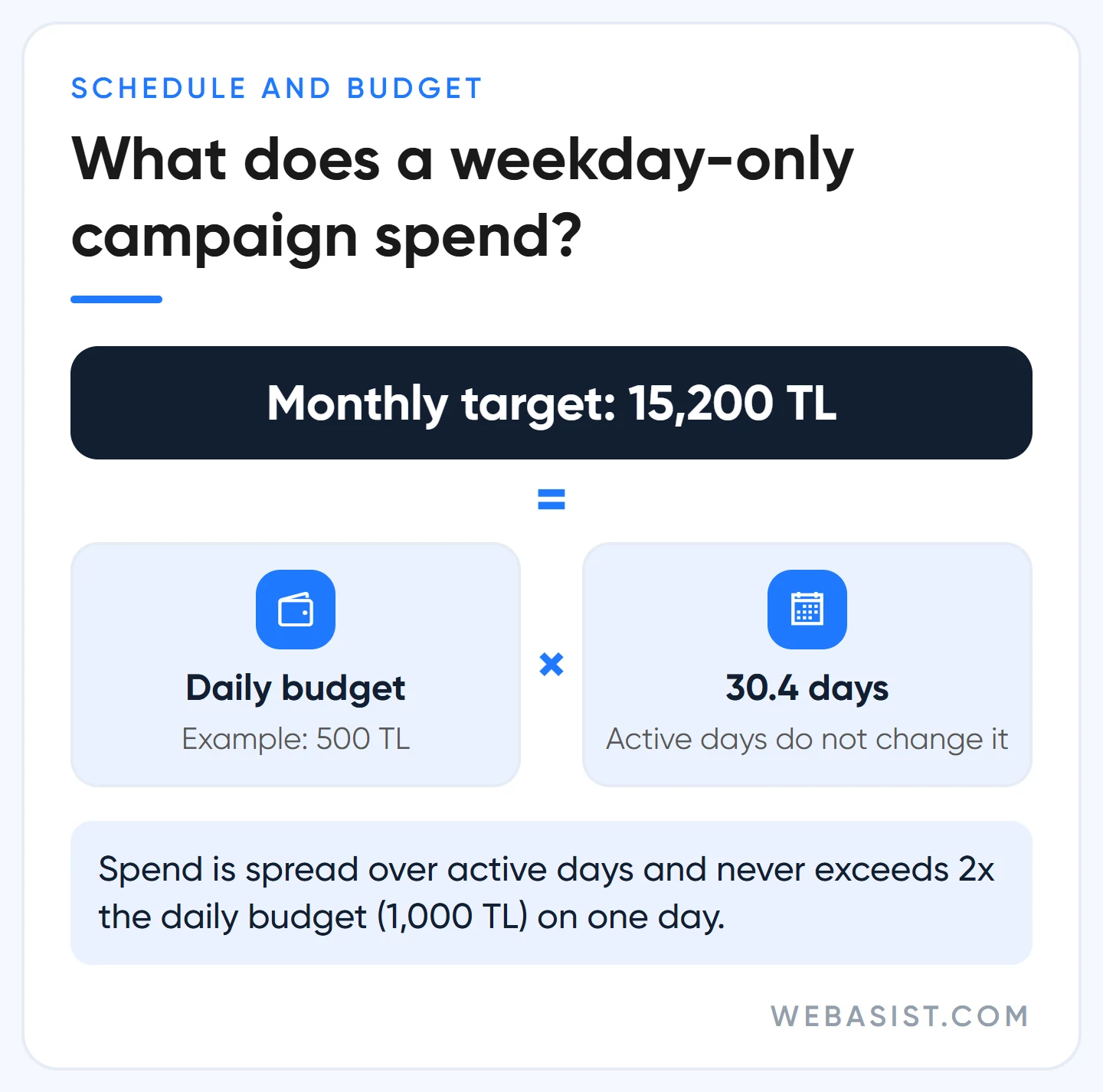
There is a budget trap here. Since June 2026, campaigns using an ad schedule pace to a monthly target of 30.4 times the daily budget, however many days they run. Worked example: a campaign with a 500 TL daily budget that is off at weekends still has a monthly target of 500 × 30.4 = 15,200 TL; the money is spread over the active days, and on any single day spend cannot exceed twice the daily budget, 1,000 TL. If you only run on weekdays, lower the daily budget to match your monthly target.
Devices: Search campaigns have no separate device selection; computers, mobiles and tablets are all on by default. To switch a device off, you set its bid adjustment to -100%. Do this with data: for local services most calls come from phones, and cutting mobile cuts the most valuable traffic.
Ad groups, keywords and ads: the longest screen in setup
An ad group brings together keywords for the same need, ads that answer that need and a single landing page. Our test for drawing the line is simple: can the same ad and the same page convincingly answer all of these keywords? If "roof insulation" and "terrace waterproofing" need different pages, they belong in different groups.
Enter one keyword per line; quotes make phrase match, square brackets exact match. On the same screen you can add negatives to the ad group with a minus sign, but we keep negatives in a campaign-level list because it is easier to manage. We build the first version of that list before launch and grow it with the routine in our negative keywords guide.
For ads, you write a responsive search ad for each group: 3 to 15 headlines (up to 30 characters), 2 to 4 descriptions (up to 90 characters) and two optional display paths. An ad group can have up to three enabled responsive search ads; we start with two ads testing two different messages. Headline writing is in our ad copy guide.
Budget, review and the Publish button
On the budget screen Google suggests a few amounts based on similar campaigns. You do not have to pick them; you can enter a custom amount. We set the budget not by Google's suggestion but by what you are willing to pay for a customer in lira; the method is in our budget planning article. Worked example: if you are willing to pay 1,000 TL per customer and want 15 customers a month, the monthly budget is 15,000 TL, or about 15,000 / 30.4 ≈ 493 TL a day.
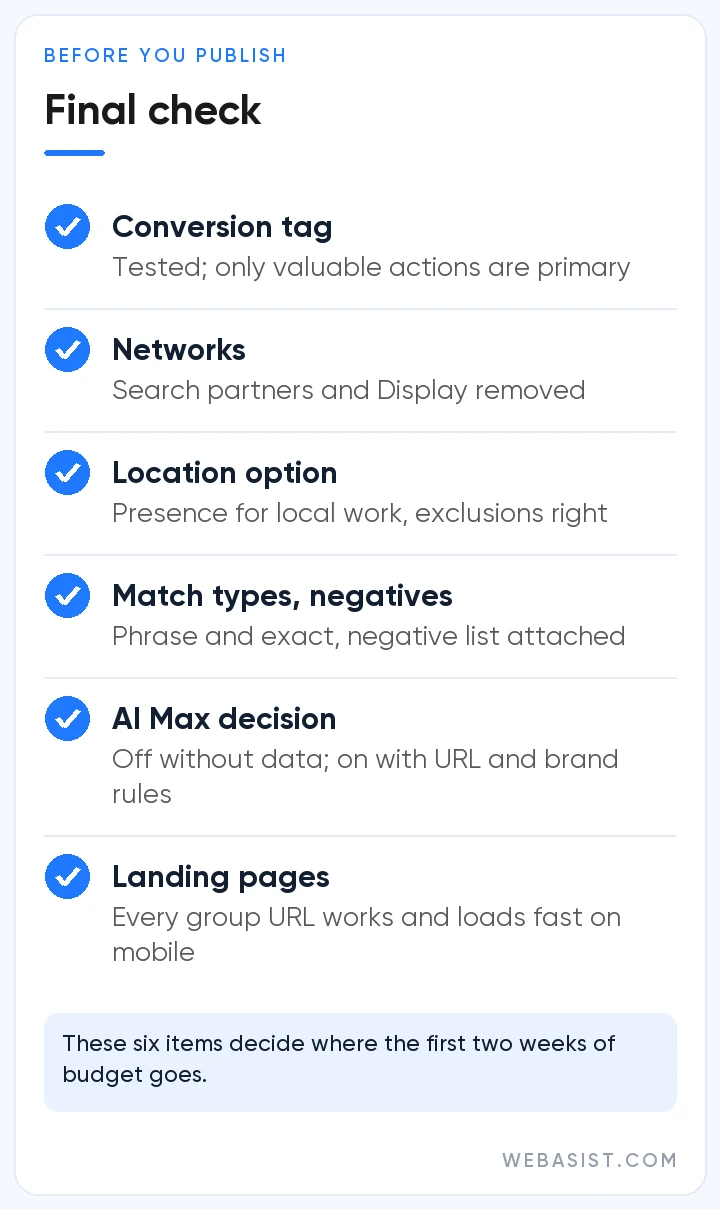
The review page lists problems that could block serving: missing billing details, ad groups without keywords or ads, broken URLs. The Fix it link takes you back to the right screen. After you press Publish, ads are usually reviewed within one business day. Delivery can take a few days to settle; do not change settings during that time.
What we do in the first two weeks is little and deliberate: we read the search terms every day, add clearly irrelevant ones as negatives and check that the conversion tag is recording. We do not change bidding, budget or location in that period, and if AI Max is on we wait out its learning time too.
Editing, copying, pausing and removing a campaign
Once the campaign is live, these are the four most common actions, and they have different consequences:
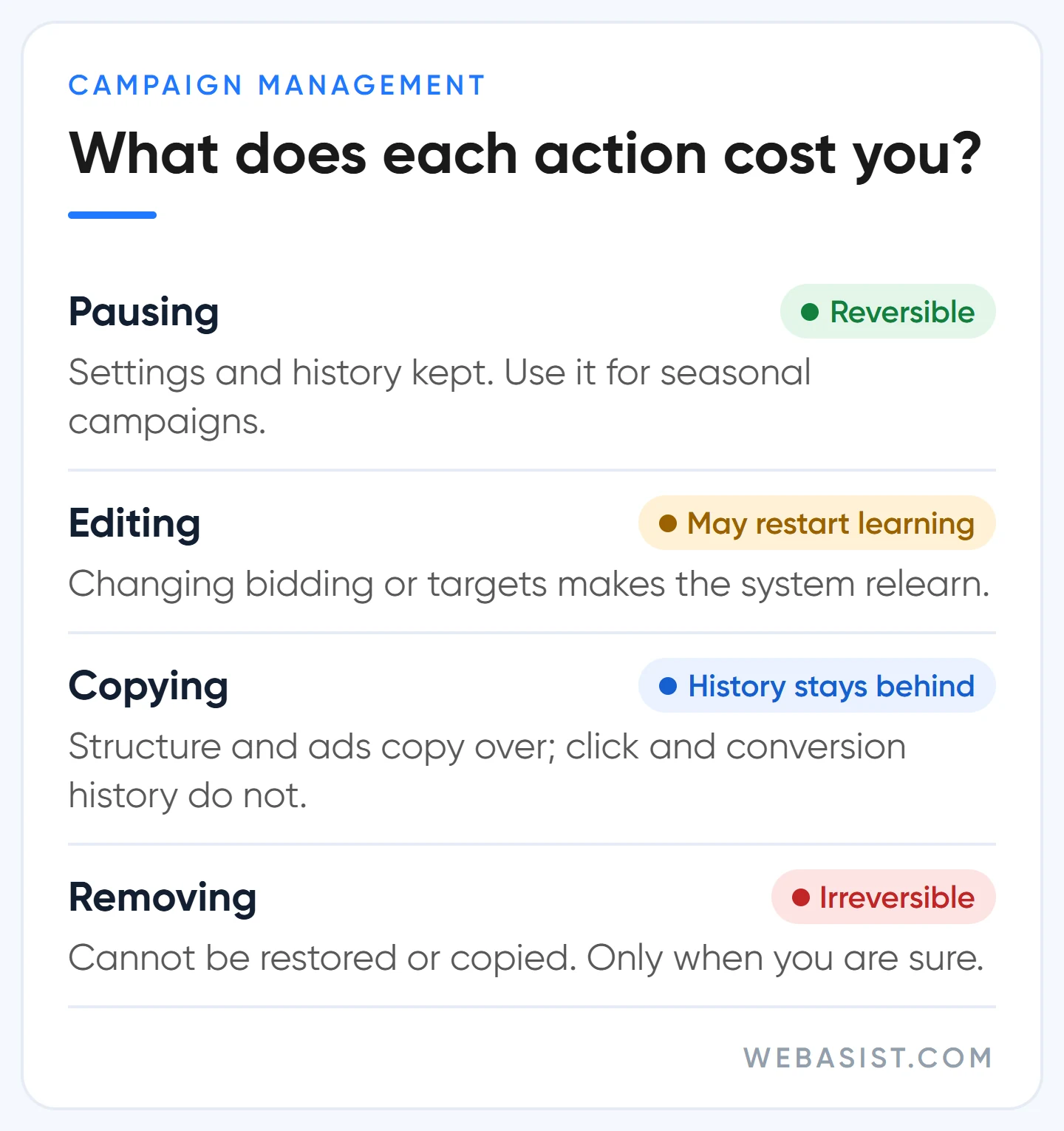
- Editing: Done from the Settings tab on the Campaigns page. Every change is written to Change history; if performance drops one day, that is the first place to look. Big changes such as bid strategy or targets can start a new learning period.
- Copying: Select the campaign, then Edit > Copy and Edit > Paste. Tick "Pause new campaigns after pasting". The copy gets the structure, settings, ads, keywords and negatives; impression, click and conversion history and what the bid strategy has learned do not carry over. The copy learns from scratch.
- Pausing: Stops the ads and keeps settings and history; you can turn it back on any time. Ad groups that were paused separately do not switch back on with the campaign.
- Removing: Permanent. A removed campaign cannot be restored or copied; you can see its data but not edit it.
Do not remove seasonal campaigns; pause them. Keep removal for campaigns you are sure you will never need again.
Moving from a Smart campaign to a Search campaign
If you opened your account with a Smart campaign through Google's sign-up flow, it is time to switch to Expert Mode and build a Search campaign. Smart campaigns use "keyword themes" instead of keywords and do not let you choose match types or bids; clicks come in, but you cannot fix what is not working.
Do not throw away what you have collected. The Smart campaign's search terms report is the best keyword source for your new ad groups; take the phrases that worked in phrase and exact match, move negative themes into campaign negatives, and copy the location setting across. Once the new campaign is approved and getting steady impressions, pause the old Smart campaign; if the two compete on the same searches, your data gets split.
Frequently Asked Questions
How do I change the location in Google Ads?
Open the Settings tab on the Campaigns page, select the campaign, and add, remove or exclude areas in the Locations section. To switch to "Presence", open Location options in the same section. For several campaigns at once, use Edit > Change locations.
Will someone searching from another city see my ad?
With the default "Presence or interest" option they can; someone interested in your target area sees your ad even from another city. With "Presence", only people in the area or regularly there are targeted.
How do I change the language setting in Google Ads?
With the change that started in September 2026, the campaign-level language setting is going away in Search campaigns and ads match on the language they are written in. To change language you work with ads and keywords, not a setting: build a separate ad group in the target language.
Does copying a campaign carry over its history?
No. Settings, ads and keywords carry over; click and conversion history and what the bid strategy has learned do not. The copy goes through learning like a brand-new campaign.
Can a removed campaign be restored?
No, removal is permanent. If you need a similar campaign, rebuild it using the details in Change history; that is why you should pause rather than remove when stopping temporarily.
Conclusion
Building a Search campaign takes half an hour; a campaign whose defaults are not changed in that half hour pays for the wrong traffic for months. Before you press Publish, check search partners, AI Max, the location option and match types one more time.
Share your screen while you set up the campaign and we will go through these settings and the location option together in 20 minutes. If you would rather hand the whole setup to us, see what our search ads service covers.